Send Automatic Replies to External Senders Only
Use AutoReply365’s Sender is external condition to send automatic replies to external senders in Microsoft 365. Follow the steps below to create an automatic reply rule for a shared or user mailbox.
You need a connected mailbox. If yours is not yet connected, follow Getting Started first.
Configure an external-only reply
For the first test, we recommend using a demo mailbox with this as its only AutoReply365 rule. Check that native automatic replies and other responders are off.
1. Prepare the auto reply template
Open Templates, choose Add Template, and give it a descriptive Template Name, such as External support acknowledgment. Add your message under HTML Content. You can adapt the example below.
Example: customer acknowledgment from support@
Thanks for contacting our support team. We have received your email.
Our team reviews support requests Monday to Friday, 08:00–17:00. Messages received outside those hours will be reviewed during our next working period.
For common questions, visit our help centre: [insert your help-page link].
This is an automatic acknowledgment. It confirms receipt of your email.
2. Select the mailbox and add a rule
Open Mailboxes & Rules and expand the mailbox that should send the acknowledgment, for example support@your-company.example. Choose Add Rule and enter External support acknowledgment in Rule Name.
3. Select external senders
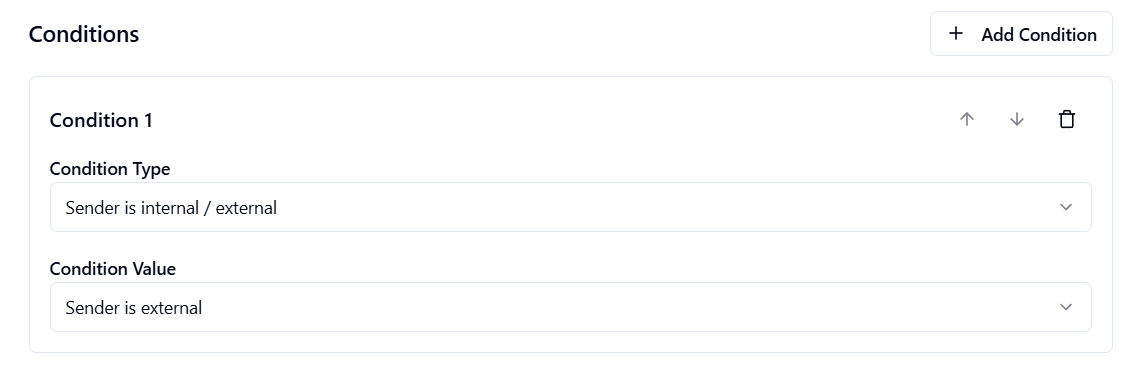
Choose Add Condition. Under Condition Type, select Sender is internal / external. Under Condition Value, select Sender is external.
4. Add the reply and choose its cooldown
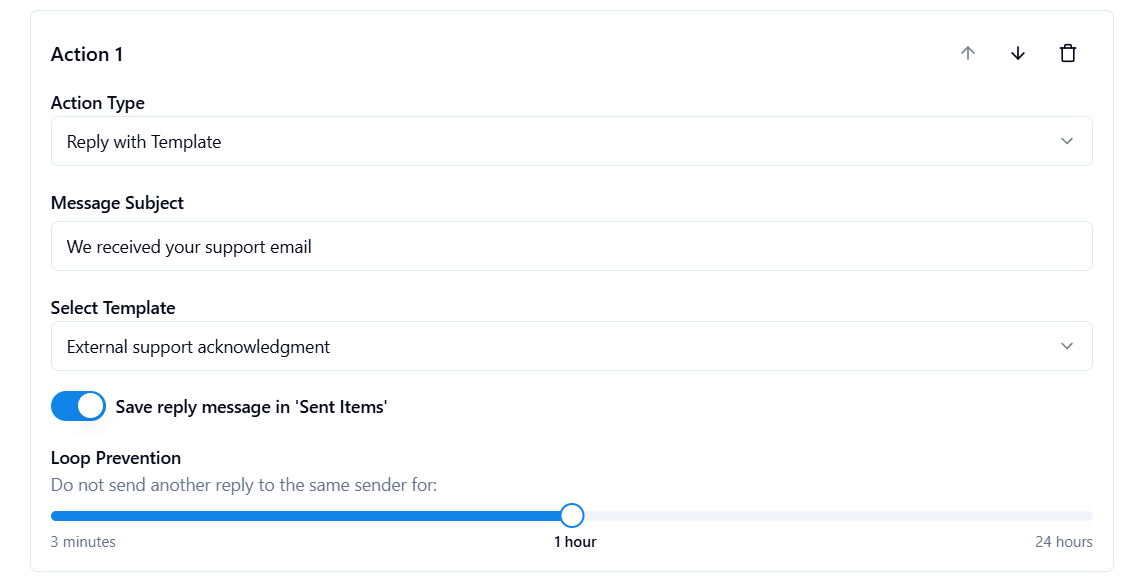
Choose Add Action and set Action Type to Reply with Template. Under Select Template, choose the template you saved. Enter a clear Message Subject, such as We received your support email.
Under Loop Prevention, set the slider to 1 hour. This controls how long to wait before sending another reply to the same sender. The available range is 3 minutes to 24 hours.
The cooldown uses the selected mailbox’s reply history for that sender, including replies from other rules. A new subject does not bypass it.
Enable Save reply message in ‘Sent Items’ if the team wants copies of the replies in the mailbox.
5. Stop further processing after the reply
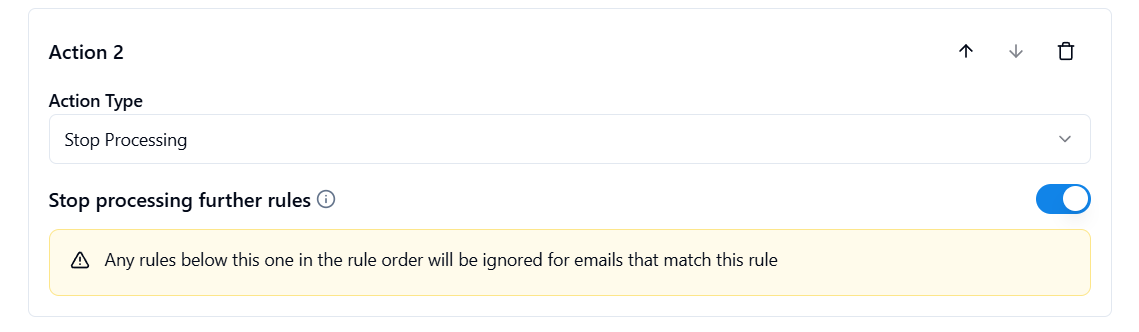
Choose Add Action again and select Stop Processing. Keep the actions in this order:
- Reply with Template
- Stop Processing
Stop Processing stops the remaining actions and subsequent AutoReply365 rules for that message.
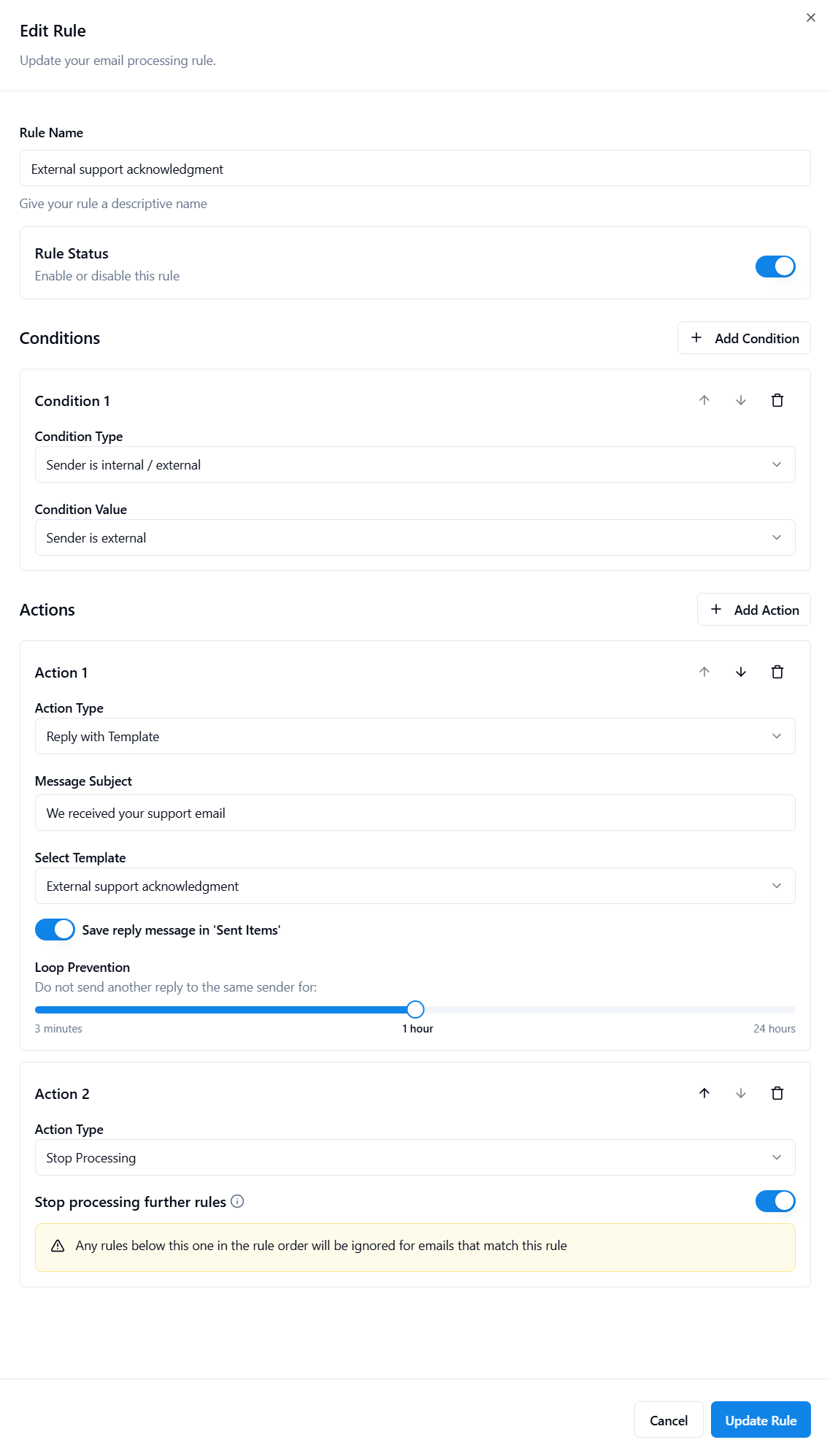
The completed rule should now look like this:
| Setting | Example value |
|---|---|
| Mailbox | Your connected support mailbox |
| Condition | Sender is internal / external → Sender is external |
| First action | Reply with Template → External support acknowledgment |
| Loop Prevention | Set to 1 hour |
| Second action | Stop Processing |
Keep Rule Status enabled and choose Create Rule. Review the saved configuration before sending test messages.
When adding this workflow to an existing mailbox, review the full rule order: an earlier reply can already have run, and an earlier Stop Processing action can prevent this rule from running.
Test external and internal messages
Use one external account and one colleague’s internal account. Start with a fresh external sender that has not recently received an AutoReply365 response from this mailbox.
Confirm that native automatic replies and other automations are not active on the demo mailbox.
These are expected results to check:
| Test message | Expected result under the isolated configuration |
|---|---|
| First message classified as external | The configured acknowledgment is sent, subject to successful processing and delivery. |
| Message classified as internal | This rule sends no reply. |
| Same external sender sends again inside the 1-hour cooldown | The additional reply is suppressed, including for a new subject. |
Inspect the external account for the received reply. If you enabled the Sent Items option, check the support mailbox for its copy too.
Confirm the internal account received no acknowledgment and that its original message reached the support mailbox.
Record the expected and observed result, timestamps and timezone, mailbox type, and receiving client. For unexpected results, inspect the relevant processing event before changing the rule.
Troubleshoot unwanted internal replies
If a colleague still receives an automatic response, check these places:
- Other AutoReply365 rules. An internal message skips the external-only rule and continues to later rules. Check rules with no audience condition, as well as any earlier rules that can send a reply.
- Native automatic replies. Outlook or shared-mailbox automatic replies are a separate responder. Review that mailbox’s native configuration; AutoReply365’s Stop Processing action does not switch it off.
- Other automations. Check Outlook template rules, Power Automate flows, and other services connected to the mailbox. Compare the received text and subject with your configured template to help identify the source.
- The received message’s classification. A colleague using a personal address, a guest, or a different mail route may not be classified as internal. Ask your administrator to check what counts as external.
If external senders receive nothing, check the saved condition and template, earlier Stop Processing actions, cooldown history, and mailbox processing or delivery errors. Use a fresh sender when repeating the test.
Frequently asked questions
What counts as external?
AutoReply365 uses Exchange’s classification on the received message. The current processor treats Internal in the X-MS-Exchange-Organization-AuthAs header as internal. Other values, or a missing header, are treated as external.
This is not a comparison with your mailbox’s email domain or a lookup of the sender’s guest-account membership.
Test messages from additional company domains, guests, or forwarded mail if those cases matter to your organization.
Can this work with a shared mailbox?
Yes. Select the connected shared mailbox under Mailboxes & Rules and create the rule there. A shared mailbox such as support@ can use the same external-sender condition as a connected user mailbox.
Why do colleagues still receive an automatic reply?
The condition limits this rule. Another rule or native responder may still reply, or the message may have been classified as external. Follow the troubleshooting checks above before changing the template.
Can external-only replies run after office hours?
Yes. Add Email received during these times alongside Sender is external. Both conditions must match.
Configure the timezone and recurring windows for your actual office hours, then test the boundaries. Writing your hours in the acknowledgment alone does not create a schedule.
What separates AutoReply365 from native Microsoft 365?
Audience separation itself is not exclusive to AutoReply365. While native Microsoft 365 Outlook automatic replies do support separate internal and external messages for absence notices, AutoReply365 gives you control over which emails trigger a reply, which template is sent, and when the same sender can receive another response. It lets you combine multiple rules and conditions for ongoing mailbox workflows:
- Recurring schedules: Send external replies after office hours or at weekends, with a schedule that repeats each week.
- Subject conditions and templates: Send different acknowledgments for invoices, job applications, or demo requests based on the subject line.
- Configurable repeat replies: Choose how long to wait before replying to the same sender again, using the cooldown described above.
For example, your support mailbox can acknowledge external emails only outside working hours, use a dedicated after-hours template, and limit repeat replies to once an hour.