Schedule Recurring Automatic Replies in Microsoft 365
Use an AutoReply365 weekly schedule to acknowledge messages received outside your regular office hours. This guide configures a connected Microsoft 365 shared or user mailbox to reply before 09:00, after 17:00, and throughout the weekend.
If you have not connected the mailbox yet, follow Getting Started. For a safe first test, use a demo mailbox and pause any native automatic replies or other automations that could also respond.
Configure recurring after-hours replies
1. Prepare the template and rule
In Templates, choose Add Template. Enter a Template Name, add the message under HTML Content, and choose Create Template. For example:
Thanks for your email. Our support desk is staffed Monday to Friday, 09:00–17:00 local time. We have received your message and will review it during our next working period. This is an automatic acknowledgment; it does not mean someone has already reviewed your request.
Replace the example hours and timezone with your actual service commitment. Then open Mailboxes & Rules, expand the connected mailbox, and choose Add Rule. Enter After-hours acknowledgment under Rule Name.
2. Select the schedule and timezone
Choose Add Condition and set Condition Type to Email received during these times. Choose Edit schedule to open Edit Schedule.
The schedule editor initially selects the timezone reported by your browser. This will usually be correct, but check Timezone before saving and change it if necessary so the selected timezone matches the working hours you intend to cover.
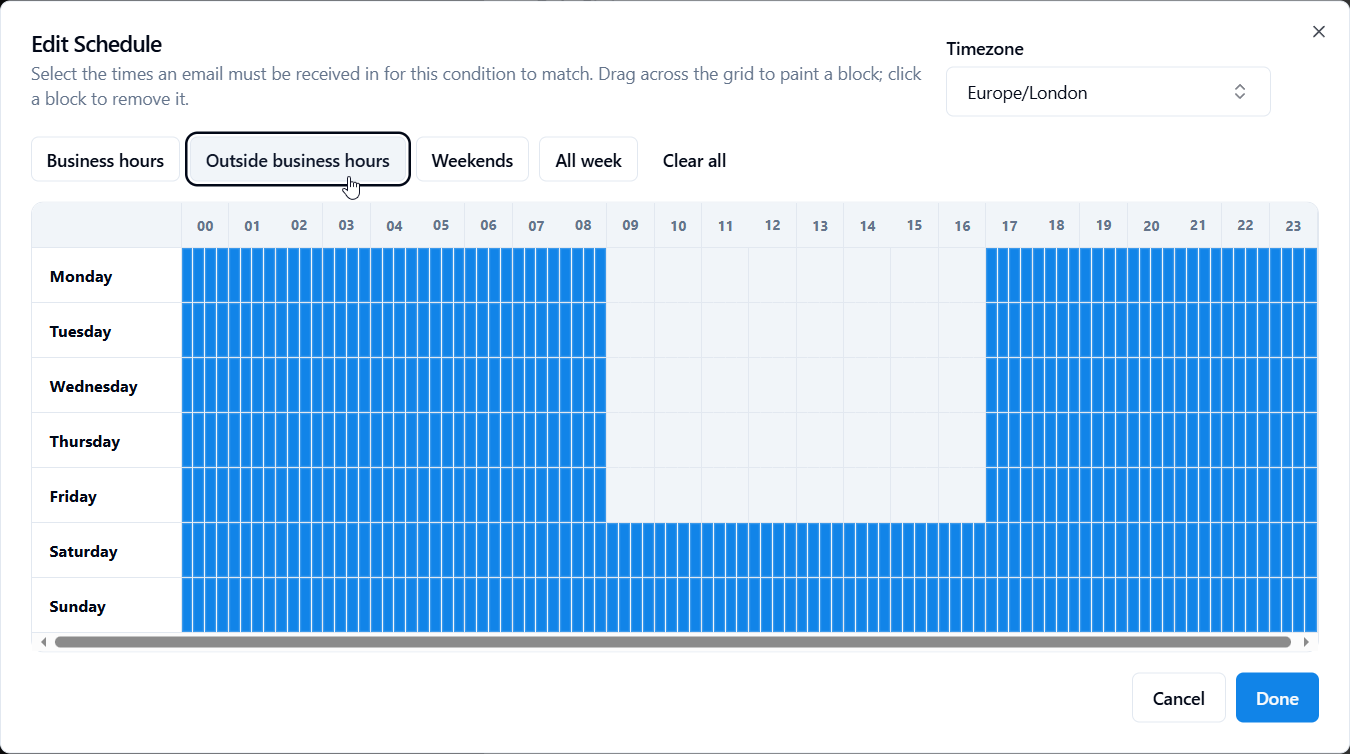
Choose Outside business hours. For standard Monday-to-Friday hours of 09:00–17:00, this selects weekday mornings and evenings plus the entire weekend. You do not need separate morning and evening rules when they use the same template and audience.
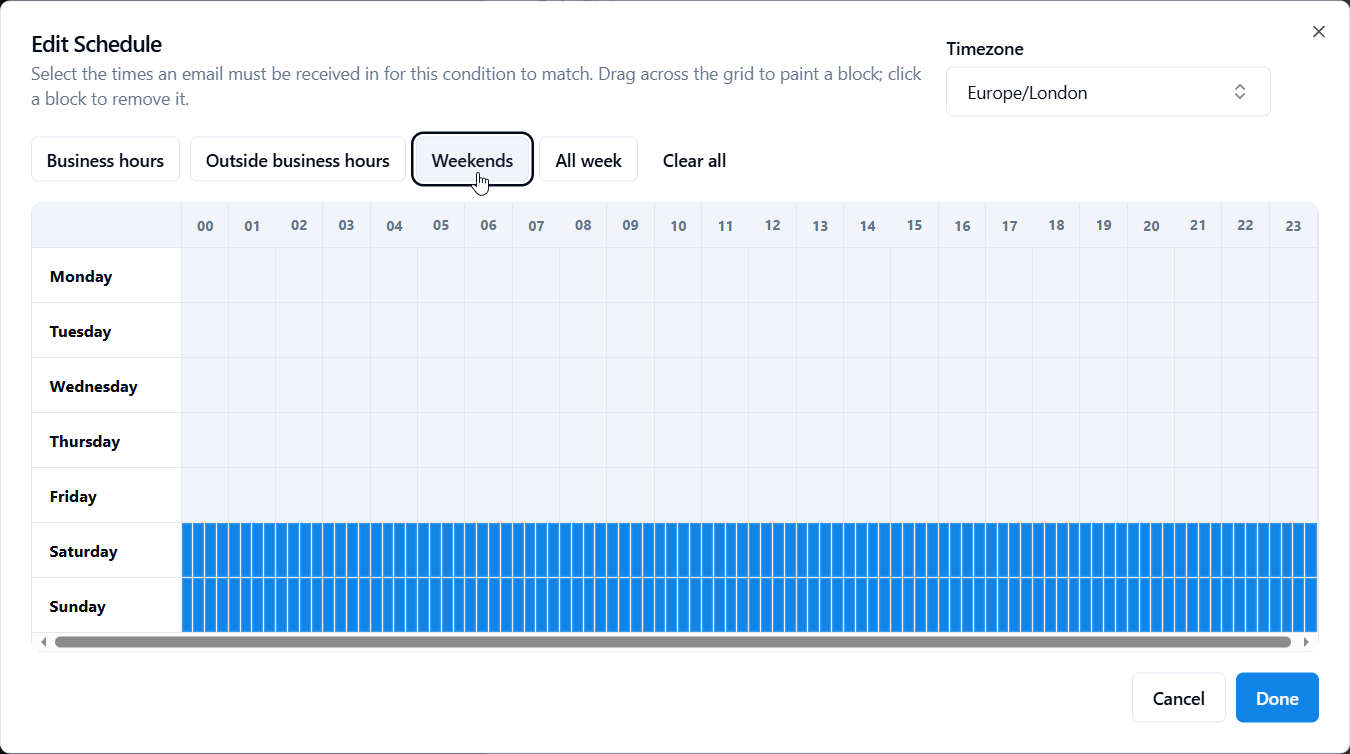
Presets replace the current selection. For example, choosing Weekends afterwards replaces the weekday windows instead of adding to them.
3. Adjust the grid and save the condition
If your hours differ from the preset, drag across the grid to paint a time block. To remove a block, select it and press Delete. The editor uses 15-minute slots, so an office that closes at 16:30 should have its evening blocks begin at 16:30.
Each window includes its start and excludes its end. In this example, 08:59 matches, 09:00 does not, and the evening window starts matching at 17:00.
Choose Done to apply the schedule to the rule form. Cancel discards changes made in the schedule dialog. Review the summary, including its timezone, before continuing.
4. Optional: limit replies to external senders
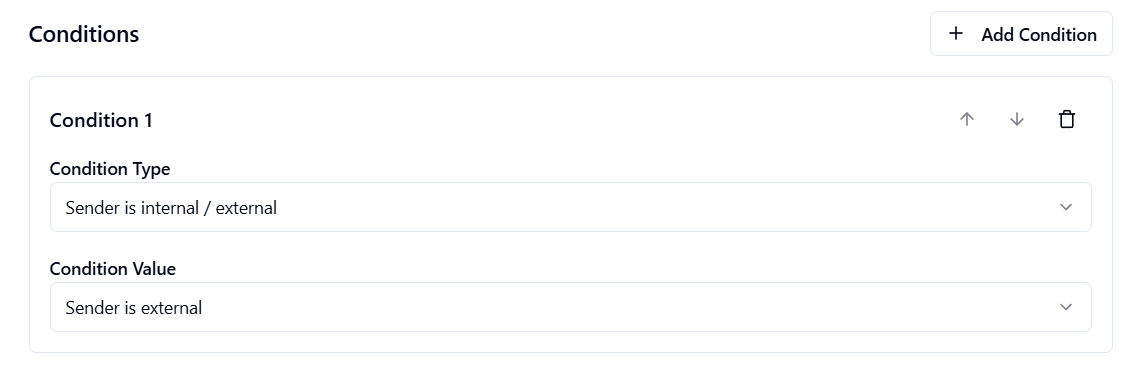
To reply only to external senders, add another condition. Select Sender is internal / external, then Sender is external. Both conditions must match: the message must arrive during a selected window and Exchange must classify its sender as external.
This classification is not based only on the sender’s domain. Test guests and unusual mail routes with real messages. The condition restricts this rule, but another AutoReply365 rule or native responder could still reply internally.
5. Add the reply actions and save
Choose Add Action and select Reply with Template. Enter a Message Subject, such as We received your email outside support hours, and choose the saved template under Select Template.
Move the Loop Prevention slider and explicitly set 1 hour for the example. Enable Save reply message in ‘Sent Items’ if the team needs copies. Add Stop Processing as the second action, after the reply.
Keep Rule Status enabled and choose Create Rule. Reopen the saved rule to check the schedule, template, duration, and action order.
Test the recurring schedule
Send test messages around the schedule boundaries. Use fresh senders so a previous reply does not hide a match through Loop Prevention. The following table shows the expected results for the example configuration; it does not represent tests already performed.
| Test time in the selected timezone | Expected schedule match |
|---|---|
| Monday 08:59 | Yes |
| Monday 09:00 | No |
| Monday 16:59 | No |
| Monday 17:00 | Yes |
| Saturday 12:00 | Yes |
| Sunday 23:59 and Monday 00:00 | Yes at both times, in adjacent daily windows |
| Friday 12:00, main preset | No |
| Friday 12:00, Friday day-off variant | Yes |
If you added the external-sender condition, send one internal and one external message during the same matching window. Only the external message should reach this rule’s reply action. Confirm that both messages reached the mailbox before treating the missing internal reply as a successful exclusion.
Troubleshooting
No automatic reply arrives
Confirm that the message reached the monitored mailbox, then check the saved schedule, timezone, template, Rule Status, and action order. Also review Loop Prevention history and earlier Stop Processing actions. Repeat the test with a fresh sender.
If the rule is external-only, verify how Exchange classified the received message. A guest, colleague using a personal address, or message sent through an unusual route may not have the classification you expect.
A reply arrives at the wrong time
The schedule uses the email’s receipt time in the selected timezone, not the sender’s clock or the time someone opens the message. A message received at 16:59 does not match the example evening window even if processing occurs after 17:00.
Check the saved timezone and boundary slots. Full-day coverage ends at 24:00, immediately before the next day’s 00:00; you do not need a 23:59 workaround.
More than one responder sends a reply
Review every AutoReply365 rule that can match the message. Stop Processing prevents later actions and rules from running, but it cannot undo an earlier reply. Native Outlook automatic replies, Outlook rules, Power Automate flows, and other services operate separately.
A matching schedule makes a reply eligible but does not override Loop Prevention. Reply history is shared across a mailbox’s rules for the same sender, and a new subject does not reset that history.
Configure other weekly schedules
Weekend-only replies
Choose Weekends instead of Outside business hours. This selects Saturday and Sunday from 00:00–24:00 without adding weekday windows.
A recurring Friday off
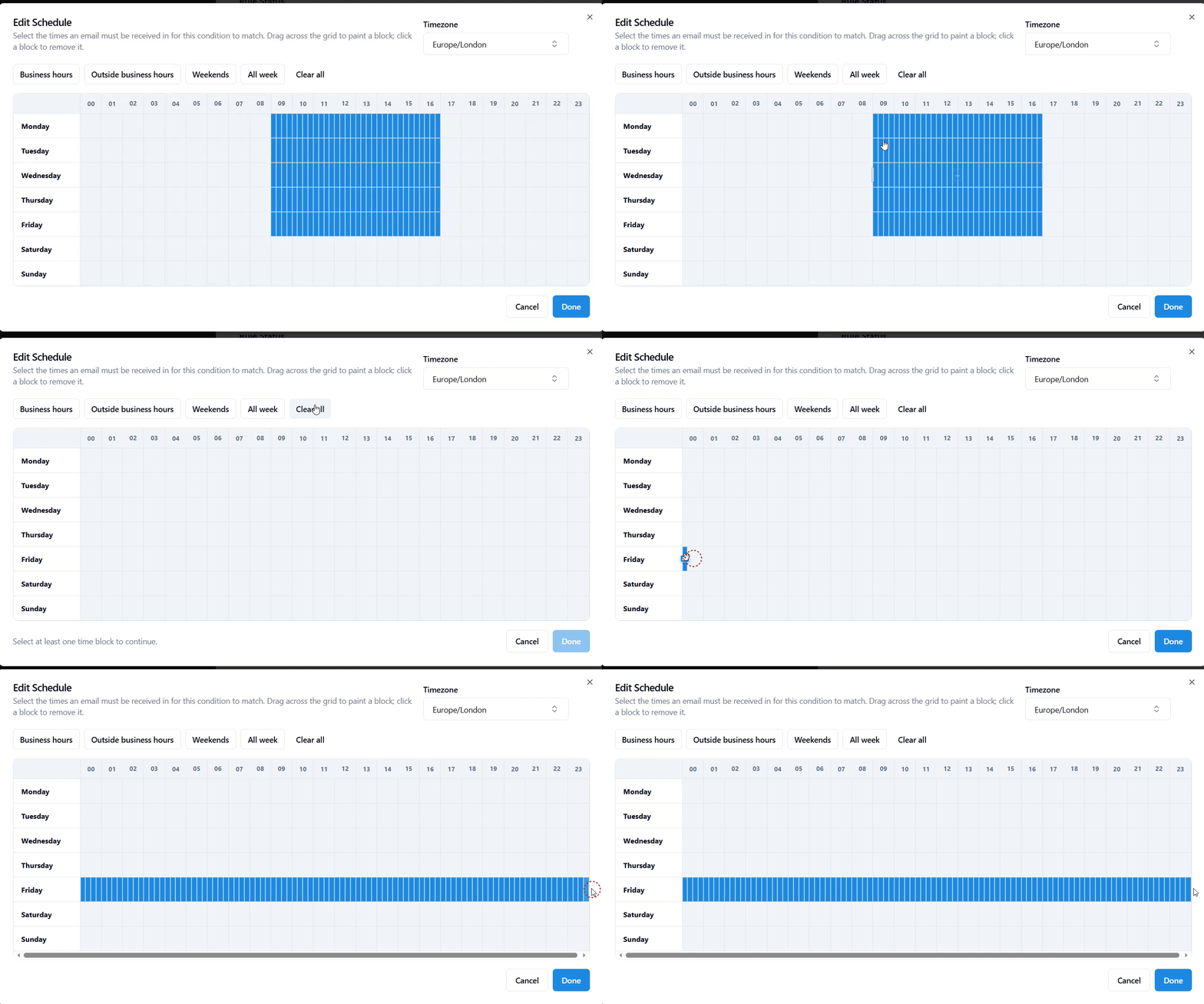
For a Friday-only reply, choose Clear all, then paint every Friday slot from 00:00 through 24:00. Choose Done and confirm that the summary shows Friday 00:00–24:00.
To add Friday as a day off to the main example, start with Outside business hours and paint the remaining Friday gap from 09:00–17:00. Do not select another preset after customizing unless you intend to replace your selections.
A window that crosses midnight
Select the late hours on the first day and the early hours on the next day. For example, Monday 22:00 to Tuesday 06:00 requires Monday 22:00–24:00 and Tuesday 00:00–06:00.
Different schedules for colleagues and customers
Create separate rules with explicit audience conditions, schedules, and templates. For example, customers can receive replies every evening and weekend while colleagues receive a Friday-only notice. Put Stop Processing after each rule’s intended actions.
How recurring schedules work
The Outside business hours preset for Monday-to-Friday hours of 09:00–17:00 creates these weekly windows:
| Day | Reply windows |
|---|---|
| Monday–Friday | 00:00–09:00 and 17:00–24:00 |
| Saturday–Sunday | 00:00–24:00 |
Weekly schedules suit after-hours teams, weekday-only mailboxes, and regular part-time working patterns. Configure the schedule once, then review it whenever working hours change.
For a single holiday or absence with known start and end dates, native Outlook automatic replies may already be enough. Microsoft’s documented setup uses a start and end period; its Exchange PowerShell command also exposes start and end dates rather than a weekly recurrence setting. See Outlook automatic replies and Set-MailboxAutoReplyConfiguration.
AutoReply365 adds recurring weekly windows that can be combined with sender or subject conditions. The schedule responds according to when a message arrives; it does not queue the message for a later reply or announce when the office closes.
Timezones and daylight saving
The processor converts each received timestamp into the schedule’s selected timezone, so the windows follow local time as its UTC offset changes. During the spring clock change, skipped local times have no corresponding receipt instant. During the autumn change, both occurrences of a repeated local time can match a window that covers it, with Loop Prevention still applying.
Test seasonal and clock-change cases before relying on a transition-hour schedule.
Public holidays and alternating weeks
Weekly windows do not automatically incorporate public holidays, alternating weeks, or calendar events. For a temporary change, record the current schedule, update the relevant windows and template, test the result, and assign someone to restore them. Any edited weekly window repeats until you change it again.
Frequently asked questions
Can replies repeat every Friday?
Yes. Select a full-day Friday window and the intended audience. It repeats weekly, subject to the rule’s other conditions and reply cooldown.
Can I send weekend replies only to external contacts?
You can combine Weekends with Sender is external. External means Exchange’s message classification, not membership in your contact list. Restricting replies to a maintained list of known addresses needs an additional sender-matching condition.
Does this handle public holidays or every other week?
The schedule editor defines weekly windows. It does not provide automatic public-holiday exceptions or alternate-week recurrence. Those requirements need a separately supported or manually maintained approach.